VS2012
Legacy Wiki Page
This page was migrated from the old MoinMoin-based wiki. Information may be outdated or no longer applicable. For current documentation, see python.org.
How to build Python 2.7.5 using Visual Studio 2012 Express on Windows 8 64-bit
My goal with these instructions is to produce a DEBUG build on x86_64 (AMD64 or x64). I’m working on a Python extension that is currently crashing on Windows, but work fine in Linux. I will be building debug version of Numpy and Matplotlib after the DEBUG version of Python is created with these instructions.
Shameless Plug: I’m the author of the C++ & Python module Nsound
References:
Many thanks to sebastien.sable for their page VS2010, which I followed to create these instructions.
Prepare Environment
1. Create a directory to store the Python source tree and dependencies, I called mine python_build{.backtick}.
2. Download Python 2.7.5 source from python.org and unzip it to python_build{.backtick}
3. Download and install an SVN command-line client (Try SlickSVN)
4. Download and install Perl64
5. Download and install Visual Studio Express 2012
Test Environment
1. Open a shell
2. Bring in the msvc compiler environment for x64 by doing:
call “C:\Program Files (x86)\Microsoft Visual Studio 11.0\VC\vcvarsall.bat” x86_amd64
Verify by typing ‘cl.exe’:
Microsoft (R) C/C++ Optimizing Compiler Version 17.00.60610.1 for x64
3. Try running the svn client: ‘svn –version’:
svn, version 1.8.3-SlikSvn-1.8.3-X64 (SlikSvn/1.8.3) X64 compiled Sep 4 2013, 16:04:02 on x86_64/x86-microsoft-windows6.1.7601
Copyright (C) 2013 The Apache Software Foundation.
4. Try running perl: ‘perl –version’
This is perl 5, version 16, subversion 3 (v5.16.3) built for MSWin32-x64-multi-thread
Download dependencies
Use the buildbot{.backtick} tools to grab the external dependencies:
cd Python2.7.5 Tools\buildbot\external-common.bat
Patch External Dependencies
Tcl
diff -r -Z -U 2 tcl-8.5.2.1/generic/tclPosixStr.c /home/Nick/development/debug/tcl-8.5.2.1/generic/tclPosixStr.c — tcl-8.5.2.1/generic/tclPosixStr.c 2008-06-12 09:01:20.765751000 -0700 +++ /home/Nick/development/debug/tcl-8.5.2.1/generic/tclPosixStr.c 2013-10-05 09:09:22.967569100 -0700 @@ -345,5 +345,5 @@ #endif #if defined(EPFNOSUPPORT) && (!defined(ENOLCK) || (ENOLCK != EPFNOSUPPORT)) - case EPFNOSUPPORT: return “EPFNOSUPPORT”; + // case EPFNOSUPPORT: return “EPFNOSUPPORT”; #endif #ifdef EPIPE @@ -405,5 +405,5 @@ #endif #ifdef ESOCKTNOSUPPORT - case ESOCKTNOSUPPORT: return “ESOCKTNOSUPPORT”; + // case ESOCKTNOSUPPORT: return “ESOCKTNOSUPPORT”; #endif #ifdef ESPIPE @@ -793,5 +793,5 @@ #endif #if defined(EPFNOSUPPORT) && (!defined(ENOLCK) || (ENOLCK != EPFNOSUPPORT)) - case EPFNOSUPPORT: return “protocol family not supported”; + // case EPFNOSUPPORT: return “protocol family not supported”; #endif #ifdef EPIPE @@ -853,5 +853,5 @@ #endif #ifdef ESOCKTNOSUPPORT - case ESOCKTNOSUPPORT: return “socket type not supported”; + // case ESOCKTNOSUPPORT: return “socket type not supported”; #endif #ifdef ESPIPE diff -r -Z -U 2 tcl-8.5.2.1/win/makefile.vc /home/Nick/development/debug/tcl-8.5.2.1/win/makefile.vc — tcl-8.5.2.1/win/makefile.vc 2008-06-12 09:01:20.765751000 -0700 +++ /home/Nick/development/debug/tcl-8.5.2.1/win/makefile.vc 2013-10-05 09:10:03.859581600 -0700 @@ -449,5 +449,5 @@
 !if $(DEBUG)
-ldebug = -debug:full -debugtype:cv
+ldebug = -debugtype:cv
 !else
 ldebug = -release -opt:ref -opt:icf,3
Tk
diff -r -Z -U 2 tk-8.5.2.0/win/makefile.vc /home/Nick/development/debug/tk-8.5.2.0/win/makefile.vc — tk-8.5.2.0/win/makefile.vc 2008-06-12 09:01:54.000047000 -0700 +++ /home/Nick/development/debug/tk-8.5.2.0/win/makefile.vc 2013-10-05 09:10:27.667979000 -0700 @@ -473,5 +473,5 @@
 !if $(DEBUG)
-ldebug = -debug:full -debugtype:cv
+ldebug = -debugtype:cv
 !else
 ldebug = -release -opt:ref -opt:icf,3
Compile External Dependencies
cd Python2.7.5 Tools\buildbot\external-amd64.bat
Manually Build Openssl 1.0.1e
1. Download and unzip openssl-1.0.1e.tar.gz{.backtick}
2. Configure openssl:
cd openssl-1.0.1e perl Configure –openssldir=%CD%\ enable-camellia disable-idea VC-WIN64A
3. IMPORTANT, I guess perl creates “symobolic” links inside the include{.backtick} directory which the openssl build environment understands. However Visual Studio doesn’t understand them:
Example Visual Studio Error message:
C:\Users\Nick\Downloads\python_build\openssl-1.0.1e\include\openssl/evp.h(1): error C2059: syntax error : ‘!’
To correct the problem, copy the headers over their symbolic links. I used a BASH shell in Cygwin to do this:
cd openssl-1.0.1e/include/openssl for f in *.h; do cp $f $f.nick; mv $f.nick $f; done
If you don’t have Cygwin installed, just unzip this file into
openssl-1.0.1e\include\openssl{.backtick} openssl-headers-1.0.1e.zip
4. Build with these commands:
ms\do_win64a.bat nmake -f ms\ntdll.mak
Convert Visual Studio 2008 Solution
1. Open Python-2.7.5\PCbuild\pcbuild.sln{.backtick} with Visual Studio 2012 Express
2. Click OK to perform the “One-Way” upgrade on all the project files.
3. Immediately close Visual Studio 2012 Express
Patch Project Files
See this diff file: PCbuild_patches.txt
I’ve also just zipped up the project files so you can just unzip them into PCbuild{.backtick}: python-2.7.5-amd64-pcbuild.zip
Build Python
1. Patch Python prevent manifest files from being embedded:
diff -r -Z -U 2 Python-2.7.5/Lib/distutils/msvc9compiler.py /cygdrive/c/Python27_d/Lib/distutils/msvc9compiler.py — Python-2.7.5/Lib/distutils/msvc9compiler.py 2013-05-11 20:32:42.000000000 -0700 +++ /cygdrive/c/Python27_d/Lib/distutils/msvc9compiler.py 2013-10-05 17:48:17.906895400 -0700 @@ -659,5 +659,6 @@ # manifest. Maybe we should link to a temp file? OTOH, that # implies a build environment error that shouldn’t go undetected. - mfinfo = self.manifest_get_embed_info(target_desc, ld_args) + #mfinfo = self.manifest_get_embed_info(target_desc, ld_args) + mfinfo = None if mfinfo is not None: mffilename, mfid = mfinfo
2. Open Python-2.7.5\PCbuild\pcbuild.sln{.backtick}
3. Select ‘DEBUG’ and ‘x64’ For the configuration.
4. Click ‘Build’ -> ‘Build Solution’ (F7):
You should now see a successful DEBUG build:
========== Build: 25 succeeded, 0 failed, 0 up-to-date, 1 skipped ==========
Testing Python
FIXME
Install Python
Now that Python has been built, I will use the script below to install executables and libraries under one directory tree, as if it were installed by a self-installer. Building the msi self installer won’t work in Visual Studio Express, in addition, the MSI tool won’t package up any of the debug libraries.
1. Save this script to your build directory: manual_install.py
2. Run the script from the build directory:
C:\Users\Nick\Downloads\python_build> Python-2.7.5\PCbuild\amd64\python_d.exe manual_install.py EXTERNALS_DIR = C:\Users\Nick\Downloads\python_build PYTHON_DIR = Python-2.7.5 TCLTK_DIR = tcltk64 DST_DIR = C:\Python27_d Creating directory: ‘C:\Python27_d’ Copying C:\Users\Nick\Downloads\python_build\Python-2.7.5\PCbuild\amd64\python_d.exe –> C:\Python27_d Copying C:\Users\Nick\Downloads\python_build\Python-2.7.5\PCbuild\amd64\pythonw_d.exe –> C:\Python27_d Copying C:\Users\Nick\Downloads\python_build\Python-2.7.5\PCbuild\amd64\python27_d.dll –> C:\Python27_d Creating directory: ‘C:\Python27_d\DLLs’ Copying C:\Users\Nick\Downloads\python_build\Python-2.7.5\PCbuild\amd64\bz2_d.pyd –> C:\Python27_d\DLLs Copying C:\Users\Nick\Downloads\python_build\Python-2.7.5\PCbuild\amd64\pyexpat_d.pyd –> C:\Python27_d\DLLs Copying C:\Users\Nick\Downloads\python_build\Python-2.7.5\PCbuild\amd64\select_d.pyd –> C:\Python27_d\DLLs Copying C:\Users\Nick\Downloads\python_build\Python-2.7.5\PCbuild\amd64\unicodedata_d.pyd –> C:\Python27_d\DLLs Copying C:\Users\Nick\Downloads\python_build\Python-2.7.5\PCbuild\amd64\winsound_d.pyd –> C:\Python27_d\DLLs Copying C:\Users\Nick\Downloads\python_build\Python-2.7.5\PCbuild\amd64_bsddb_d.pyd –> C:\Python27_d\DLLs Copying C:\Users\Nick\Downloads\python_build\Python-2.7.5\PCbuild\amd64_ctypes_d.pyd –> C:\Python27_d\DLLs Copying C:\Users\Nick\Downloads\python_build\Python-2.7.5\PCbuild\amd64_ctypes_test_d.pyd –> C:\Python27_d\DLLs Copying C:\Users\Nick\Downloads\python_build\Python-2.7.5\PCbuild\amd64_elementtree_d.pyd –> C:\Python27_d\DLLs Copying C:\Users\Nick\Downloads\python_build\Python-2.7.5\PCbuild\amd64_hashlib_d.pyd –> C:\Python27_d\DLLs Copying C:\Users\Nick\Downloads\python_build\Python-2.7.5\PCbuild\amd64_msi_d.pyd –> C:\Python27_d\DLLs Copying C:\Users\Nick\Downloads\python_build\Python-2.7.5\PCbuild\amd64_multiprocessing_d.pyd –> C:\Python27_d\DLLs Copying C:\Users\Nick\Downloads\python_build\Python-2.7.5\PCbuild\amd64_socket_d.pyd –> C:\Python27_d\DLLs Copying C:\Users\Nick\Downloads\python_build\Python-2.7.5\PCbuild\amd64_sqlite3_d.pyd –> C:\Python27_d\DLLs Copying C:\Users\Nick\Downloads\python_build\Python-2.7.5\PCbuild\amd64_ssl_d.pyd –> C:\Python27_d\DLLs Copying C:\Users\Nick\Downloads\python_build\Python-2.7.5\PCbuild\amd64_testcapi_d.pyd –> C:\Python27_d\DLLs Copying C:\Users\Nick\Downloads\python_build\Python-2.7.5\PCbuild\amd64_tkinter_d.pyd –> C:\Python27_d\DLLs Copying tcltk64\bin\tcl85g.dll –> C:\Python27_d\DLLs Copying tcltk64\bin\tclpip85g.dll –> C:\Python27_d\DLLs Copying tcltk64\bin\tk85g.dll –> C:\Python27_d\DLLs Copying C:\Users\Nick\Downloads\python_build\Python-2.7.5\Include –> C:\Python27_d\include Copying C:\Users\Nick\Downloads\python_build\Python-2.7.5\PC\pyconfig.h –> C:\Python27_d\include Copying C:\Users\Nick\Downloads\python_build\Python-2.7.5\Lib –> C:\Python27_d\Lib Creating directory: ‘C:\Python27_d\libs’ Copying C:\Users\Nick\Downloads\python_build\Python-2.7.5\PCbuild\amd64\bz2.lib –> C:\Python27_d\libs Copying C:\Users\Nick\Downloads\python_build\Python-2.7.5\PCbuild\amd64\pyexpat.lib –> C:\Python27_d\libs Copying C:\Users\Nick\Downloads\python_build\Python-2.7.5\PCbuild\amd64\python27_d.lib –> C:\Python27_d\libs Copying C:\Users\Nick\Downloads\python_build\Python-2.7.5\PCbuild\amd64\select.lib –> C:\Python27_d\libs Copying C:\Users\Nick\Downloads\python_build\Python-2.7.5\PCbuild\amd64\sqlite3.lib –> C:\Python27_d\libs Copying C:\Users\Nick\Downloads\python_build\Python-2.7.5\PCbuild\amd64\unicodedata.lib –> C:\Python27_d\libs Copying C:\Users\Nick\Downloads\python_build\Python-2.7.5\PCbuild\amd64\winsound.lib –> C:\Python27_d\libs Copying C:\Users\Nick\Downloads\python_build\Python-2.7.5\PCbuild\amd64_bsddb.lib –> C:\Python27_d\libs Copying C:\Users\Nick\Downloads\python_build\Python-2.7.5\PCbuild\amd64_ctypes.lib –> C:\Python27_d\libs Copying C:\Users\Nick\Downloads\python_build\Python-2.7.5\PCbuild\amd64_ctypes_test.lib –> C:\Python27_d\libs Copying C:\Users\Nick\Downloads\python_build\Python-2.7.5\PCbuild\amd64_elementtree.lib –> C:\Python27_d\libs Copying C:\Users\Nick\Downloads\python_build\Python-2.7.5\PCbuild\amd64_hashlib.lib –> C:\Python27_d\libs Copying C:\Users\Nick\Downloads\python_build\Python-2.7.5\PCbuild\amd64_msi.lib –> C:\Python27_d\libs Copying C:\Users\Nick\Downloads\python_build\Python-2.7.5\PCbuild\amd64_multiprocessing.lib –> C:\Python27_d\libs Copying C:\Users\Nick\Downloads\python_build\Python-2.7.5\PCbuild\amd64_socket.lib –> C:\Python27_d\libs Copying C:\Users\Nick\Downloads\python_build\Python-2.7.5\PCbuild\amd64_sqlite3.lib –> C:\Python27_d\libs Copying C:\Users\Nick\Downloads\python_build\Python-2.7.5\PCbuild\amd64_ssl.lib –> C:\Python27_d\libs Copying C:\Users\Nick\Downloads\python_build\Python-2.7.5\PCbuild\amd64_testcapi.lib –> C:\Python27_d\libs Copying C:\Users\Nick\Downloads\python_build\Python-2.7.5\PCbuild\amd64_tkinter.lib –> C:\Python27_d\libs Creating directory: ‘C:\Python27_d\Scripts’ Copying C:\Users\Nick\Downloads\python_build\tcltk64\lib –> C:\Python27_d\tcl All done! [21354 refs]
C:\Users\Nick\Downloads\python_build>
3. Test that the Tkinter module can be imported:
cd C:
C:\Python27_d\python_d.exe Python 2.7.5 (default, Oct 5 2013, 13:16:58) [MSC v.1700 64 bit (AMD64)] on win32 Type “help”, “copyright”, “credits” or “license” for more information. >>> import Tkinter [63979 refs] >>>
SUCCESS!
How to build Numpy & Matplotlib in Debug Mode
Numpy is easy to get installed, however, Matplotlib has several dependancies, FreeType, libpng and zlib.
Setup Environment
1. Save this text to ‘benv64_d.bat’:
@echo off
:: Add Vistual Studio

echo Adding Visual Studio to path ...

call "C:\Program Files (x86)\Microsoft Visual Studio 11.0\VC\vcvarsall.bat" x86_amd64

:: Hacks for python.distutils
set VS100COMNTOOLS=%VS110COMNTOOLS%
set VS90COMNTOOLS=%VS110COMNTOOLS%

:: Add Python

echo Adding python64_d to path ...

set PATH=C:\python27_d;%PATH%
2. Open a command prompt and call ‘benv64_d.bat’:
call benv64_d.bat Adding Visual Studio to path … Adding python64_d to path …
Build and Install Numpy
1. Download Numpy-1.7.1.zip
2. Build and install with this command:
cd numpy-1.7.1 python_d.exe setup.py build –debug install
Verify Numpy Installed
1. Try to import numpy:
cd c:
python_d.exe >>> import numpy >>>
SUCCESS!
Build & Install FreeType
1. Download and unzip freetype-2.5.0.1
2. Open ‘freetype-2.5.0.1\builds\win32\vs2010\freetype.sln`
3. Select DEBUG and add an ‘x64’ configuration
4. Build Solution.
5. “Install” freetype to our debug install
cd freetype-2.5.0.1 mkdir C:\Python27_d\PC mkdir C:\Python27_d\PC\VC6 cp builds\win32\vc2010\x64\Debug\freetype250_D.lib C:\Python27_d\PC\VC6\freetype.lib
Build & Install zlib
1. Download and unzip zlib-1.2.8.tar.gz{.backtick}
2. Open zlib-1.2.8\contrib\vstudio\vc11\zlibvc.sln{.backtick} with Visual Studio 2012 Express
3. Right click on the ‘zlibstat’ project and click on ‘Build’
4. Copy to install directory:
copy zlib-1.2.8\contrib\vstudio\vc11\x64\ZlibStatDebug\zlibstat.lib C:\Python27_d\PC\VC6\z.lib
Build & Install libpng
1. Download lpng166.zip
2. Edit the file lpng166\projects\vstudio\zlib.props{.backtick}:
Need to edit ZLibSrcDir to reflect correct zlib version:
……..\zlib-1.2.8
3. Open solution lpng166\projects\vstudio\vstudio.sln{.backtick}
4. Let Visual Studio 2012 update the project files.
5. Adjust project for 64-bit & debug mode
5.1 Right clik on ‘libpng’ project, select ‘Properties’
5.2 Change project type from DLL to static .lib
5.3 Select DEBUG build
5.4 Click on ‘win32’ and add a new ‘x64’ configuration
6. Right click on ‘libpng’ and click on ‘Build’
libpng.vcxproj -> C:\Users\Nick\Downloads\python_build\lpng166\projects\vstudio\x64\Debug\libpng16.lib ========== Build: 3 succeeded, 0 failed, 0 up-to-date, 0 skipped ==========
7. “Install” to our debug directory:
copy lpng166\projects\vstudio\x64\Debug\libpng16.lib C:\Python27_d\PC\VC6\png.lib
Installing Matplotlib
1. Download and unzip matplotlib-1.3.0
For my DEBUG environment, I’m going to use the TK backend, so write this
setup.cfg{.backtick}:Rename this file to setup.cfg to modify matplotlib’s
# build options.

[egg_info]

[directories]

[status]

[packages]

[gui_support]

[rc_options]
backend = TkAgg
2. To compile against TK, FreeType, libpng, and zlib, we need update the INCLUDE shell variable so the matplotlib setup can find the headers, from the python_build{.backtick} directory do:
set INCLUDE=%CD%\tcltk64\include;%CD%\freetype-2.5.0.1\include;%CD%\lpng166;%INCLUDE%
FYI,
%CD%{.backtick} expands to the current directory.
4. Copy tcl/tk libs so matplotlib can find them, note renaming without the ‘g’:
copy tcltk64\lib\tcl85g.lib C:\Python27_d\libs\tcl85.lib copy tcltk64\lib\tk85g.lib C:\Python27_d\libs\tk85.lib
3. Build and install:
cd matplotlib-1.3.0 python_d setup.py build –debug install
4. Test maptplotlib:
cd c:
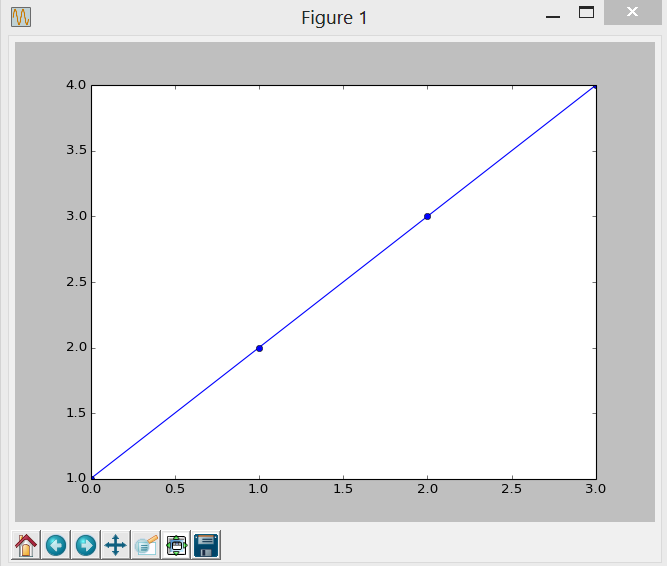
c:\Python27_d\python_d.exe Python 2.7.5 (default, Oct 5 2013, 13:16:58) [MSC v.1700 64 bit (AMD64)] on win32 Type “help”, “copyright”, “credits” or “license” for more information. >>> from matplotlib.pylab import * [460242 refs] >>> plot([1,2,3,4], “bo-“) [<matplotlib.lines.Line2D object at 0x00000000062CD5A0>] [480934 refs] >>> show()If all went well, we should now have a plot: